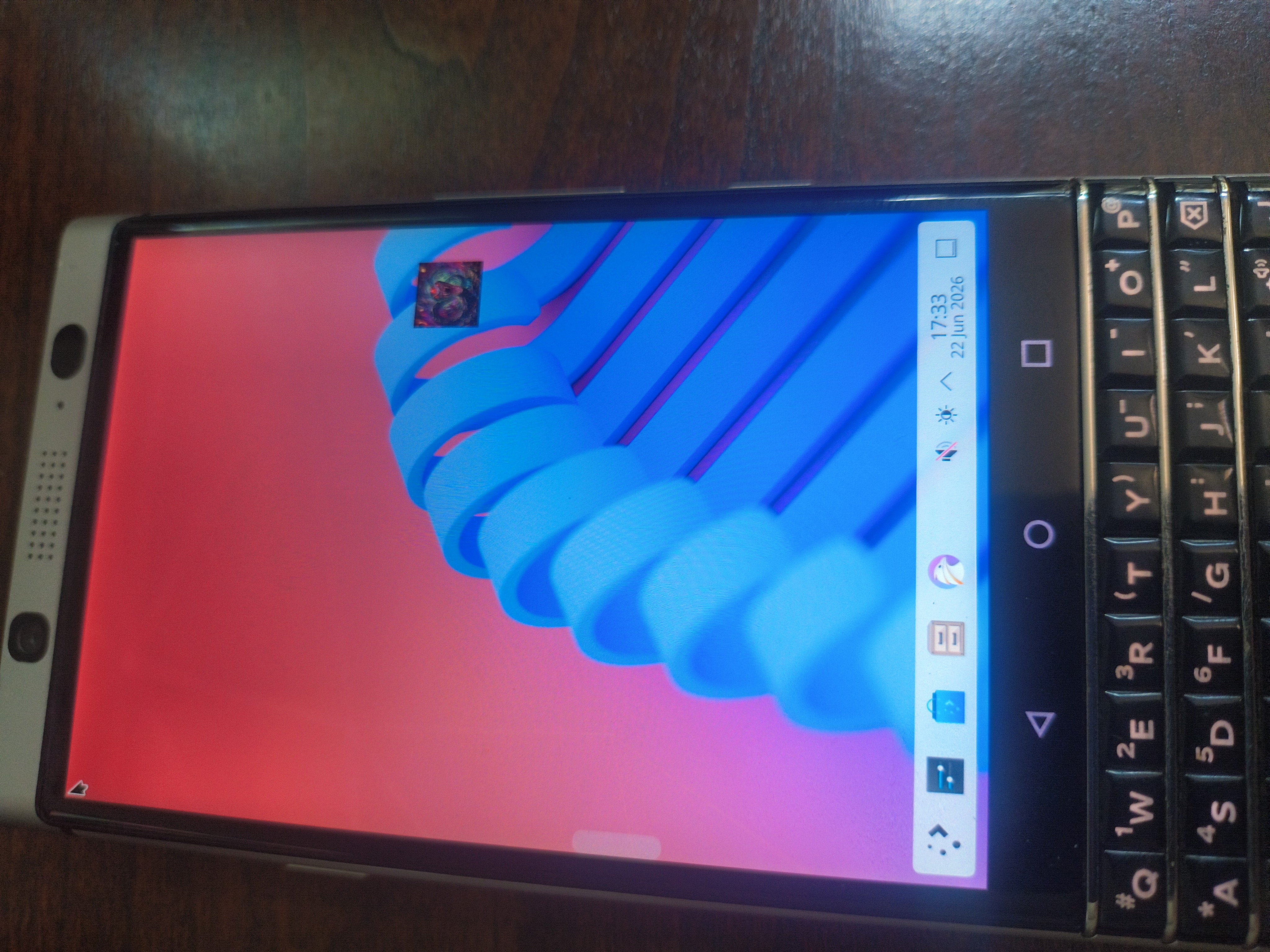
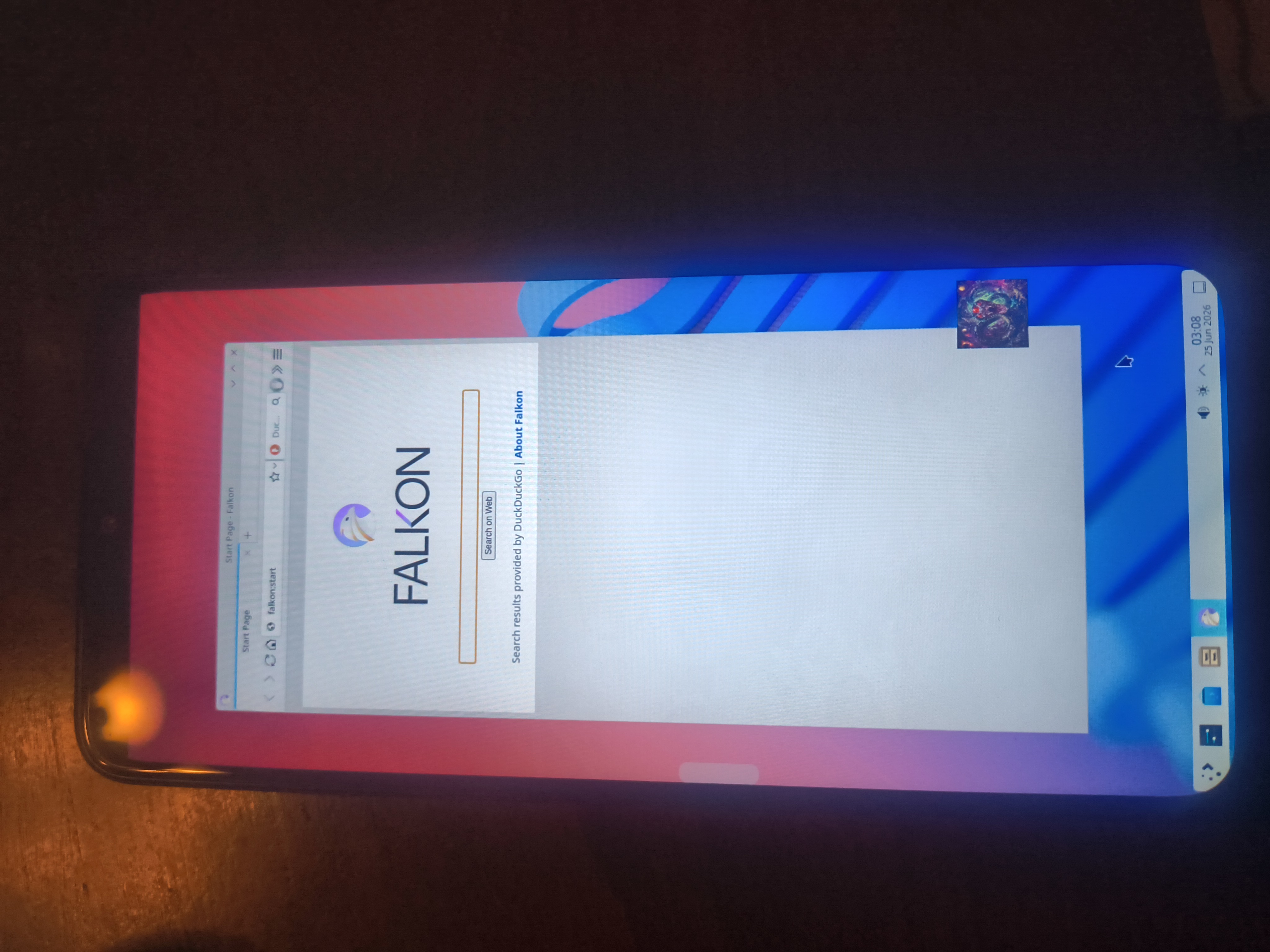
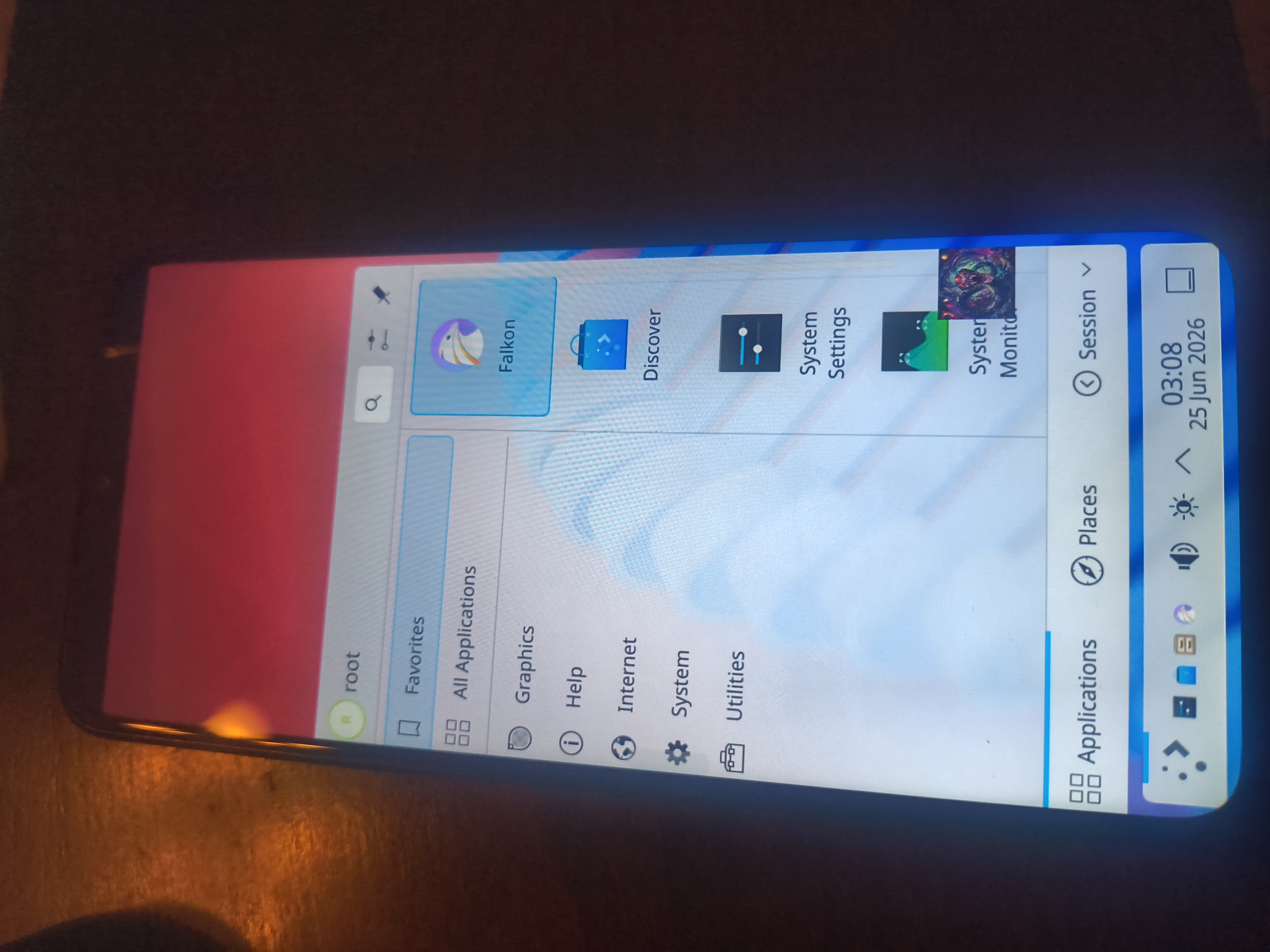
ApophisOS is a Linux-first ecosystem built on one idea: your hardware is yours —
to do with what you choose. Not some locked-down ecosystem that controls what you do, when you do it,
and how, while tracking your every move. Windows, macOS, and Google all build their platforms around
collecting your data. ApophisOS doesn't. Two ways in —
a full bootable desktop ISO for any PC, or a
Linux mobile environment that runs on the Android device you already own.
Turn your Android device into a full Linux phone — no root, no second device, no compromise. Linux is your primary environment; Android handles calls, SMS, and the camera.
Try Our Free Apps
Apophis Creations · 100% Free · One Click Linux & Office on Linux
NOT SOLD to Germany, Austria, or Switzerland. These countries require public disclosure of the seller's personal legal name and home address before selling to their residents — that runs against everything ApophisOS stands for. Message us on Signal if you're in one of these countries and want to work out an alternate way to get the app.
NO REFUNDS for user error, ever — no exceptions. If you have a problem with the app, message us on WhatsApp, Signal, or email and we'll help you fix it.
Full Ubuntu 25.10 with KDE Plasma desktop. The complete Linux phone experience on any 64-bit Android 7+ device. Install any software from apt. Boots automatically on device start.
Ubuntu 25.10 via proot — no root required
KDE Plasma desktop, tablet mode
apt — 60,000+ packages
Firefox + PWA support
Auto-launch on device boot
Android available for calls & camera
Apophis App Store
133 Apps · PWA Technology · Real Icons
133 apps unavailable on standard Linux — Microsoft Office, Adobe Photoshop, Canva,
AI tools, and more — all installable directly to your Linux desktop as Progressive Web Apps.
A full Debian-based Linux desktop built for security work and real privacy, with a built-in arsenal of pentesting tools — free to download, boot, and keep forever.
// ApophisOS Desktop
A Real Desktop, Built for the Work
ApophisOS Desktop is a Debian Trixie-based distribution running Plasma Lite, themed to match the rest of the ApophisOS ecosystem with the Sweet GTK theme and Candy Icons for the same dark, sharp look as every other ApophisOS product.
Originally built for PCs sold directly through GigLife Gaming — this is its first public release.
🛡️
Security & Pentesting Focused
Built with security work in mind from the ground up, with the Arsenal menu unlocking a full pentesting toolkit after install.
🕶️
Privacy Focused
No telemetry, no phoning home — matching every other product in the ApophisOS line.
🌐
Ra Browser, Built In
ApophisOS's own privacy browser ships pre-installed, with a working Tor toggle right in the browser's own settings — no separate Tor Browser needed.
⚙️
Install to Disk, Optional
Boot live from USB, or install permanently using the stock Debian Installer, with BTRFS as the install filesystem. Note: the installer itself doesn't support touchpad or touchscreen input — use a USB mouse or external keyboard/mouse during install on touch-only hardware.
// Download
Get ApophisOS Desktop
You won't find a "Download" button here. That's on purpose — here's why, and how to get the ISO anyway.
Why there's no direct download link
Every free way to host a 3 GB file for public download comes with a catch, and none of them cleared the bar for ApophisOS: actually free, doesn't track visitors, and doesn't put anyone's identity on file with a company we don't trust.
☁️
CDNs like Cloudflare
Tied into the same Big Tech advertising and data-broker ecosystem this project exists to get away from.
⚠️
SourceForge
Documented history of disguising ads as download buttons on project pages — tricking people into downloading something other than what they asked for.
💳
"Free" Cloud VPS Tiers
Oracle and others require a real credit card and phone number to sign up, even though you're never charged.
Note: BitTorrent and Tor are genuinely private options, but unreliable or painfully slow for a beginner trying to grab an OS install image on their first try. Rather than quietly hand the file to a company whose values don't match this project's, it's handled the old-fashioned way: directly.
// Request the ISO
Get a Private Download Link
The ISO is hosted privately on Proton Drive — end-to-end encrypted storage, no ad tracking, no data-broker ties. Reach out below and you'll get a private download link directly, usually same day. No mailing list, no account, no follow-up beyond sending the file.
Note: The SHA256 checksum for verifying your download comes with the link. Once you have the .iso, add it to a Ventoy drive, or create a bootable USB with Balena Etcher, then boot from it. From there, run it live or install permanently with the stock Debian Installer.
// The Arsenal Menu
Every Pentesting Tool, One Number Away
ApophisOS Desktop ships with an Arsenal menu — a custom, accessible menu built specifically for ApophisOS that launches pentesting tools by number choice, not memorized commands. Set it up after your first boot:
1
Finish the OS Install
Boot the ISO and install ApophisOS Desktop as normal, or run it live.
2
Visit apophisarsenal.netlify.app
Open a browser and go to apophisarsenal.netlify.app. Enter the access password when prompted — message us after install and we'll send it over.
3
Copy and Run the Toolkit Install Script
The site gives you a script that installs the full pentesting toolkit onto your fresh ApophisOS Desktop install. Copy it into a terminal and run it.
4
Copy and Run the Arsenal Script
A second script turns your terminal into the Arsenal menu itself — a numbered list of every installed tool. Run it whenever you want the menu, or set it to launch permanently every time you open a terminal.
✓ The Arsenal menu is entirely number-driven — no tool names or flags to memorize. Pick a number, the tool launches.
Need the unlock code? Message us on WhatsApp, Signal, or email after you've installed, and we'll send the access password for apophisarsenal.netlify.app.
Authorized use only. ApophisOS Desktop's pentesting tools are for networks and systems you own or have explicit written permission to test.
Introducing Anubis
Premium ApophisOS Experience
A one-tap, premium-tier way into the same Linux desktop ApophisOS delivers — built for people who want it running immediately, with zero manual steps.
Anubis and Anubis Lite are the premium tier of the ApophisOS platform — a single tap installs a fully working Linux desktop on your Android device, no manual setup required. Pick the full Anubis experience or the trimmed-down Lite build for lower-end hardware.
$9.99 one-time
Anubis
One-Tap Install · Proot Linux Desktop · Any Architecture
One-tap Android app that installs a full Linux desktop via proot — the premium ApophisOS experience. Installs on any device architecture.
One-Tap Install · Proot Linux Desktop · Any Architecture
The lighter, streamlined version of Anubis — same one-tap Linux desktop install, trimmed down for lower-end devices. Installs on any device architecture.
Anubis and Anubis Lite don't give you a limited "mobile Linux" experience — they give you the same full Linux desktop you'd get on a laptop or desktop PC, running on the Android device you already carry. If you can do it on a PC, you can do it here.
💻
Full Coding Projects
Write, run, and debug real code — Python, JavaScript, Go, C/C++, whatever your stack is. Full compilers, interpreters, and dev tools available via apt.
📱
Build & Install Your Own Apps
Build an Android app directly on the phone it's meant to run on, then install it right there — no separate build machine required.
📤
Push Apps & Files to Other Devices
Transfer files, APKs, and builds directly to other phones, tablets, or computers on your network — no cloud middleman required.
🔐
SSH Into Servers
Full OpenSSH client built in. Manage remote servers, deploy code, or administer infrastructure — the same as you would from any Linux workstation.
🛠️
Real Dev Toolchain
Git, Docker-compatible tooling, text editors, IDEs — the actual Linux development environment, not a stripped-down mobile substitute.
🌐
Full Browser + PWA Support
Real Firefox with PWA installs — run web-based dev tools, design software, and productivity apps as installed desktop apps.
Full Penetration Testing Suite Included — both Anubis and Anubis Lite ship with the complete pentest toolkit included at no extra cost with purchase. Network scanning, exploitation frameworks, wireless testing, and forensics tools, ready to use from either app.
Want a guided pentest workflow instead of the raw toolkit? We can provide a setup command for our new Arsenal Menu — the automated pentest menu created specifically for ApophisOS. One command sets up an organized, automated launcher for running penetration testing tools directly from either app.
Authorized use only. Pentest tools are for use on networks and systems you own or have explicit written permission to test.
What is ApophisOS?
The Linux phone you already have
Named after Apophis — the Egyptian serpent of chaos that swallows the sun. ApophisOS is the disruption the locked-down mobile market deserves.
// About
Full Linux on the Phone in Your Pocket
ApophisOS is an Android application that runs a full Ubuntu 25.10 environment
with KDE Plasma desktop directly on your phone or tablet —
no root required, no second boot, no hardware modifications. It uses proot-style
containerization to run a complete Linux userspace on top of the Android kernel.
You get a real terminal. A real package manager. Real desktop applications.
Everything you'd expect from a Linux workstation, in your pocket, on the hardware you already own.
🐍
Full Ubuntu 25.10
Complete apt-based rootfs. Install anything from the Ubuntu repos — no restrictions.
🖥️
KDE Plasma Desktop
Real Wayland compositor. Proper windowed apps. Touch-optimized panel and full-screen app drawer.
📱
Android When You Need It
Phone calls, SMS, camera, and GPS stay on Android. One swipe back, one swipe forward.
🔒
No Root Required
Runs entirely in userspace. No bootloader unlock, no warranty void, no flashing.
🌐
Firefox + PWAs
Full browser with PWA support via PWAsForFirefox. Install any web app directly to the desktop.
⚡
Auto-Launch on Boot
Plasma starts automatically when your phone boots. Unlock your phone, you're in Linux.
// Mission
Full Linux. Always.
The smartphone was supposed to be a computer in your pocket. Instead it became
a locked-down appliance controlled by two corporations. ApophisOS is the counter to that.
Our goal is simple: Linux is your primary operating environment, all day, every day.
You live in the Plasma desktop. You run real Linux applications. You have a terminal always available.
You install software with a package manager, not a curated app store.
Android stays in the background — handling phone calls, SMS, camera, GPS, and the hardware
layer it does well. When you need to take a call, you take the call. When the call ends,
you're back in Linux.
This is the hybrid Linux phone. Not PostmarketOS — which requires flashing your device
and sacrificing camera and calls. Not raw Termux — which is a terminal emulator, not a desktop.
ApophisOS is a full Plasma desktop that lives alongside Android, using what Android does well
while taking everything else back.
Your phone is a Linux computer. Act like it.
// The Developer
GigLife Gaming & Computer Services
Founded by a veteran software developer with over 20 years of experience — including time spent working in Silicon Valley at the heart of the tech industry. After a workplace injury in 2017 ended a long career in traditional development, we pivoted to what we love most — building software that actually solves real problems for real people.
Since then we have designed websites, built apps, and created tools that put powerful technology in the hands of everyday users. ApophisOS is our flagship project and the clearest expression of our mission — bringing full Linux to the average person, on the hardware they already own, without the technical barriers that have kept Linux out of reach for most people.
🐍
Our Mission
Linux has always been the most powerful, most free operating system on the planet. We are bringing it to everyone. One device at a time.
🔒
Privacy First
We do not collect your data. We do not sell your information. We do not track you. ApophisOS runs entirely on your own device. Privacy is not a feature — it is a right.
🛠️
Built by a Developer
20+ years of professional experience. Designed for everyone. If you have a question, the person who built it is one tap away.
// Contact
Connect with the Developer
Have a question about ApophisOS? Need install help? Want to report a bug or suggest a feature? Reach out directly — no support ticket, no bot, just the developer.
Purchase and download ApophisOS from the button above. The APK will download directly to your device. Open your file manager → Downloads → tap the APK → tap Install.
Note: If Android blocks the install, go to Settings → Security → Install unknown apps and allow your browser or file manager.
2
Enable Developer Options
Developer Options unlocks settings Android hides by default. Required for ApophisOS to run reliably.
Settings → About Phone → tap Build Number 7 times until you see "You are now a developer."
Then go to Settings → Developer Options and enable it if not already on.
3
Disable Child Process Restrictions
Some Android versions restrict background child processes. If your Developer Options has this setting, disable it so ApophisOS can run Linux processes without being killed.
Settings → Developer Options → Background process limit → set to Standard limit
Note: Not all phones show this option — skip it if you don't see it.
4
Set App Permissions
ApophisOS runs as a home launcher and needs full permissions to function correctly.
Long-press the ApophisOS icon → tap the ⓘ info icon → Permissions → enable all permissions.
ⓘ
5
Set Battery to Unrestricted
Prevents Android from killing ApophisOS in the background.
Long-press icon → ⓘ info → Battery → Unrestricted
If you skip this step the Linux environment may be killed when you switch apps.
6
Enable Draw Over Other Apps
Required for the ApophisOS overlay and floating taskbar to appear on top of the desktop.
Long-press icon → ⓘ info → Display over other apps → Allow
All set — now what? Head to the Setup Guide →
to install KDE Plasma and configure your desktop.
Setup Guide
Ubuntu 25.10 · KDE Plasma · Falkon · No Snap · No Root
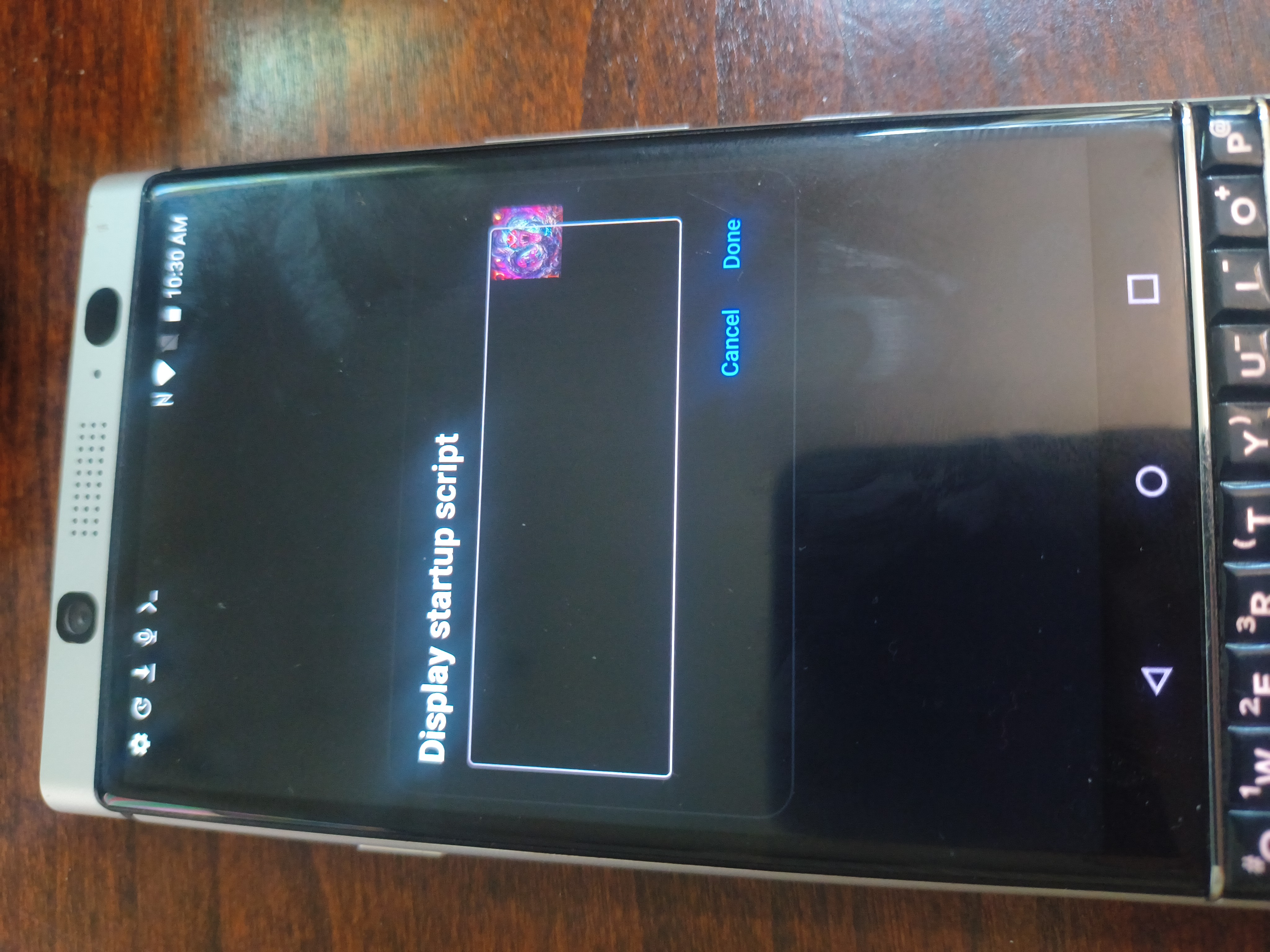
Complete ALL phases in the terminal BEFORE tapping Display. The display script is the very last step.
// Phase 1 — First Boot
Wait for the Terminal Prompt
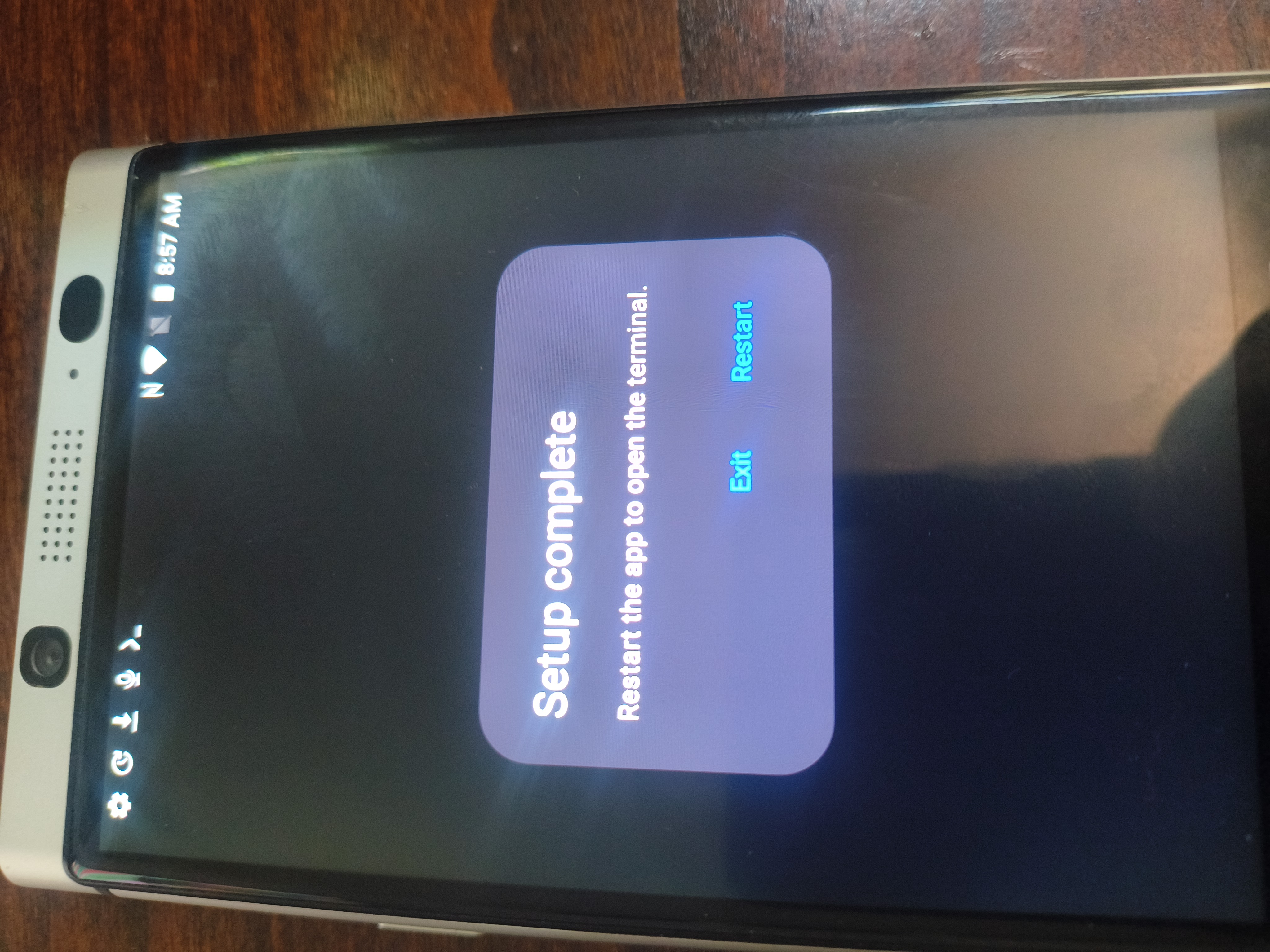
Tap the ApophisOS icon on your device. On first launch ApophisOS downloads and extracts Ubuntu 25.10 automatically. Wait for the terminal prompt before continuing.
✓ You will see a terminal prompt when extraction is complete — press Exit, not Continue.
// Phase 2 — Open the Terminal
Open the Terminal
Locate the ApophisOS icon on your home screen or in the app drawer and long-press it. In the menu that pops up, tap Terminal.
✓ A terminal window opens — this is where every command in the phases below gets typed.
// Phase 3 — Fix DNS
Fix DNS
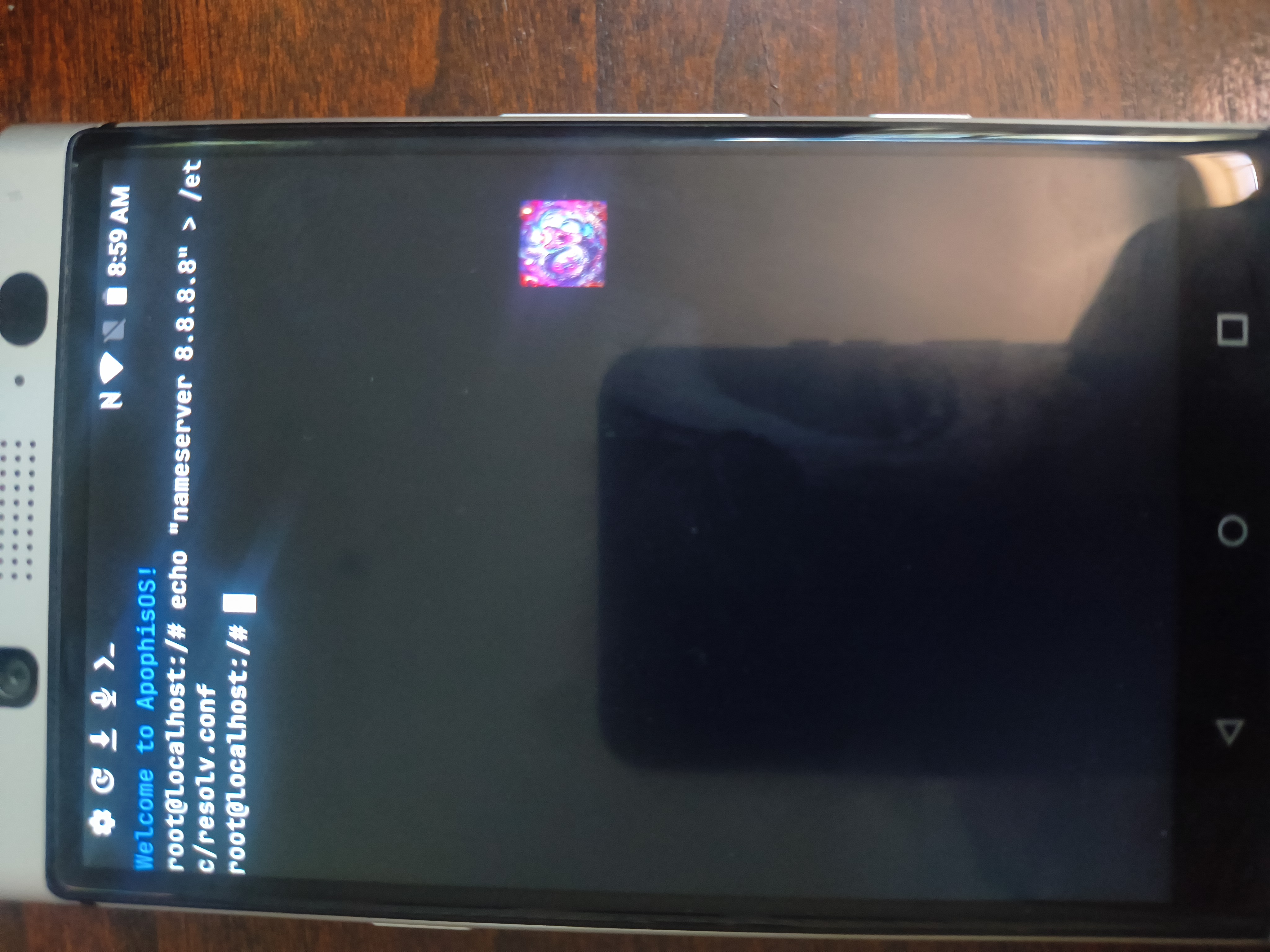
Run this first every session or apt will fail.
Set DNS resolver
echo "nameserver 8.8.8.8" > /etc/resolv.confCOPY
// Phase 4 — Update Packages
Update Ubuntu
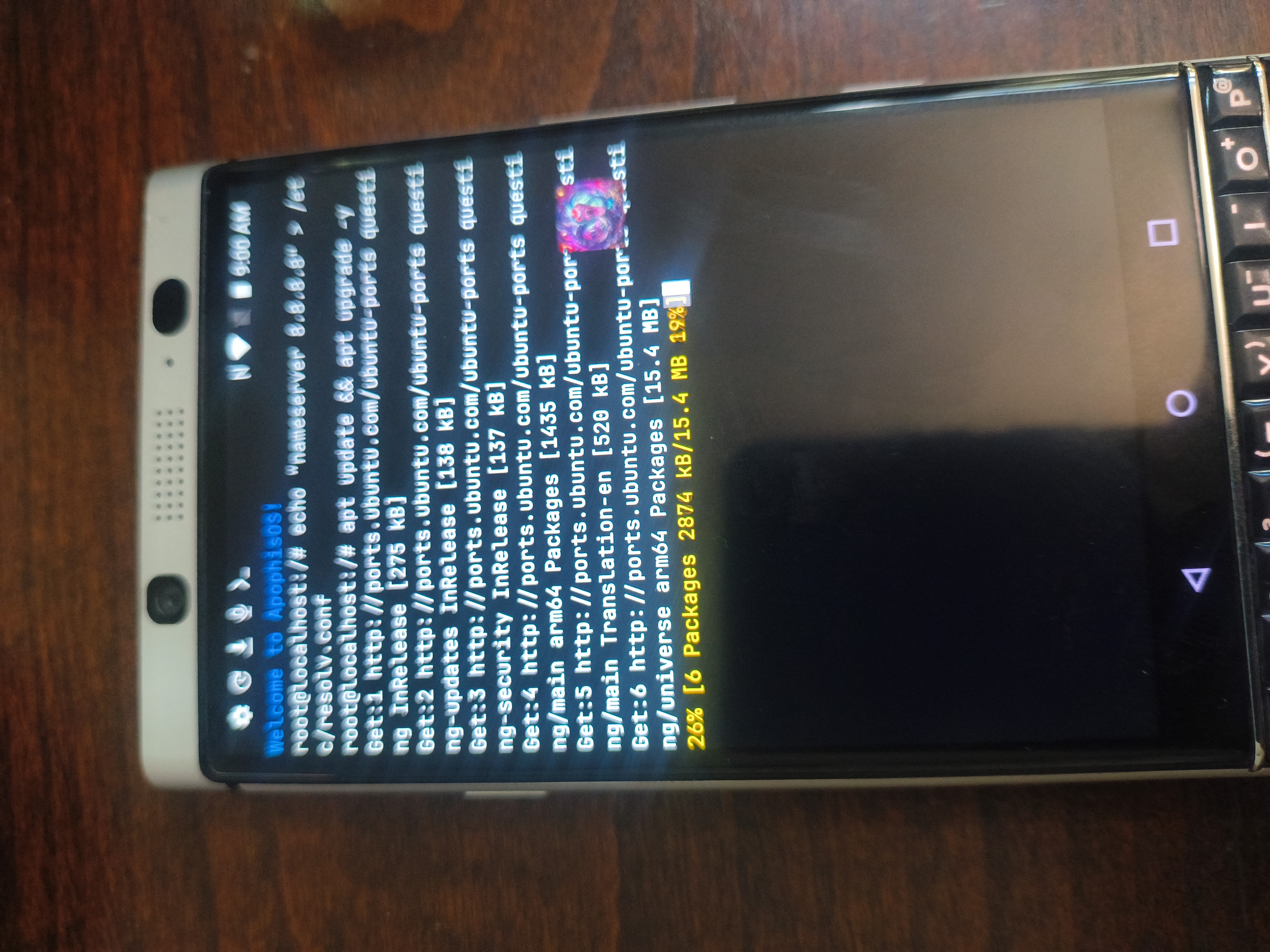
Update & upgrade
apt update && apt upgrade -yCOPY
// Phase 5 — Install KDE Plasma
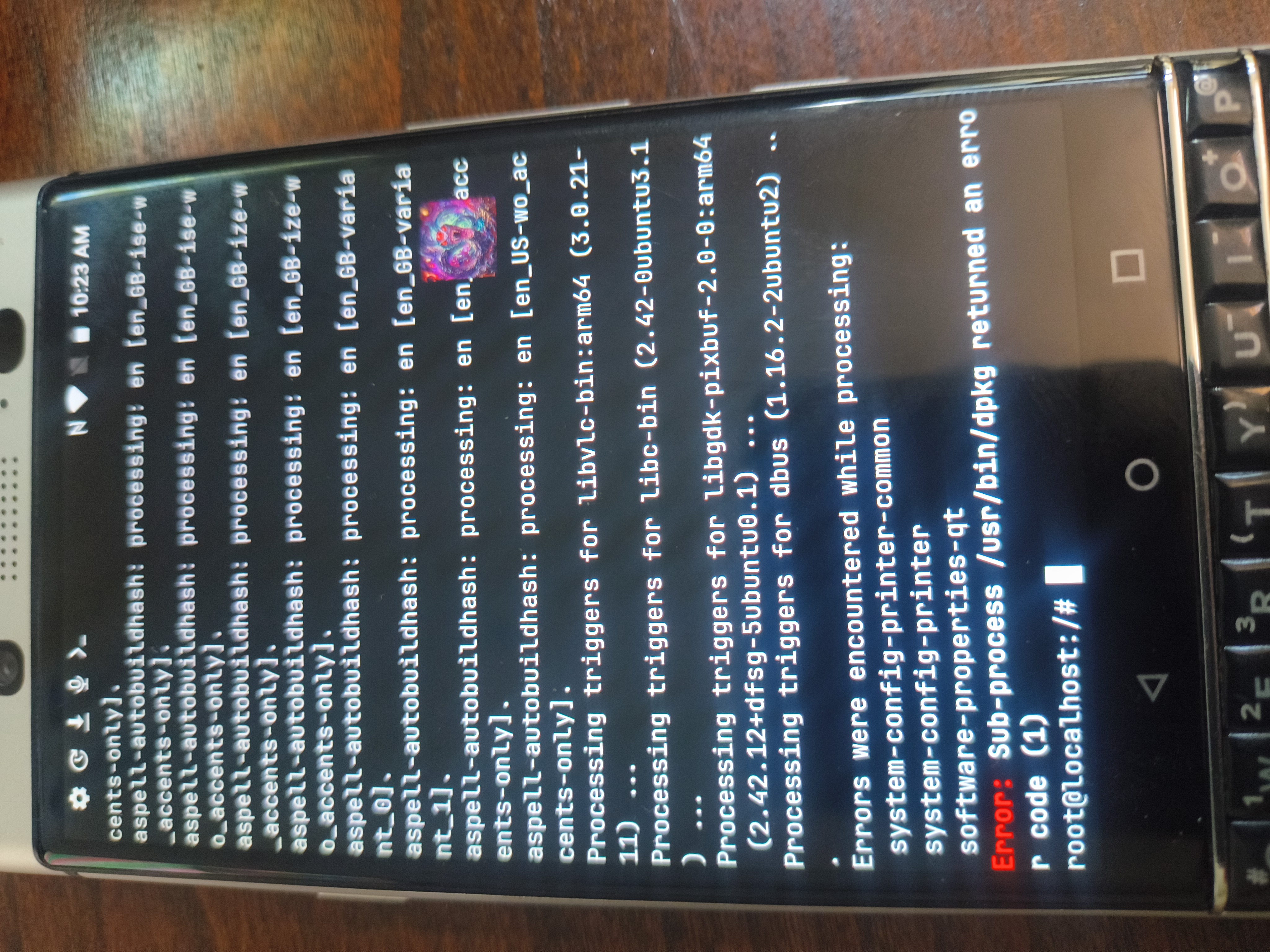
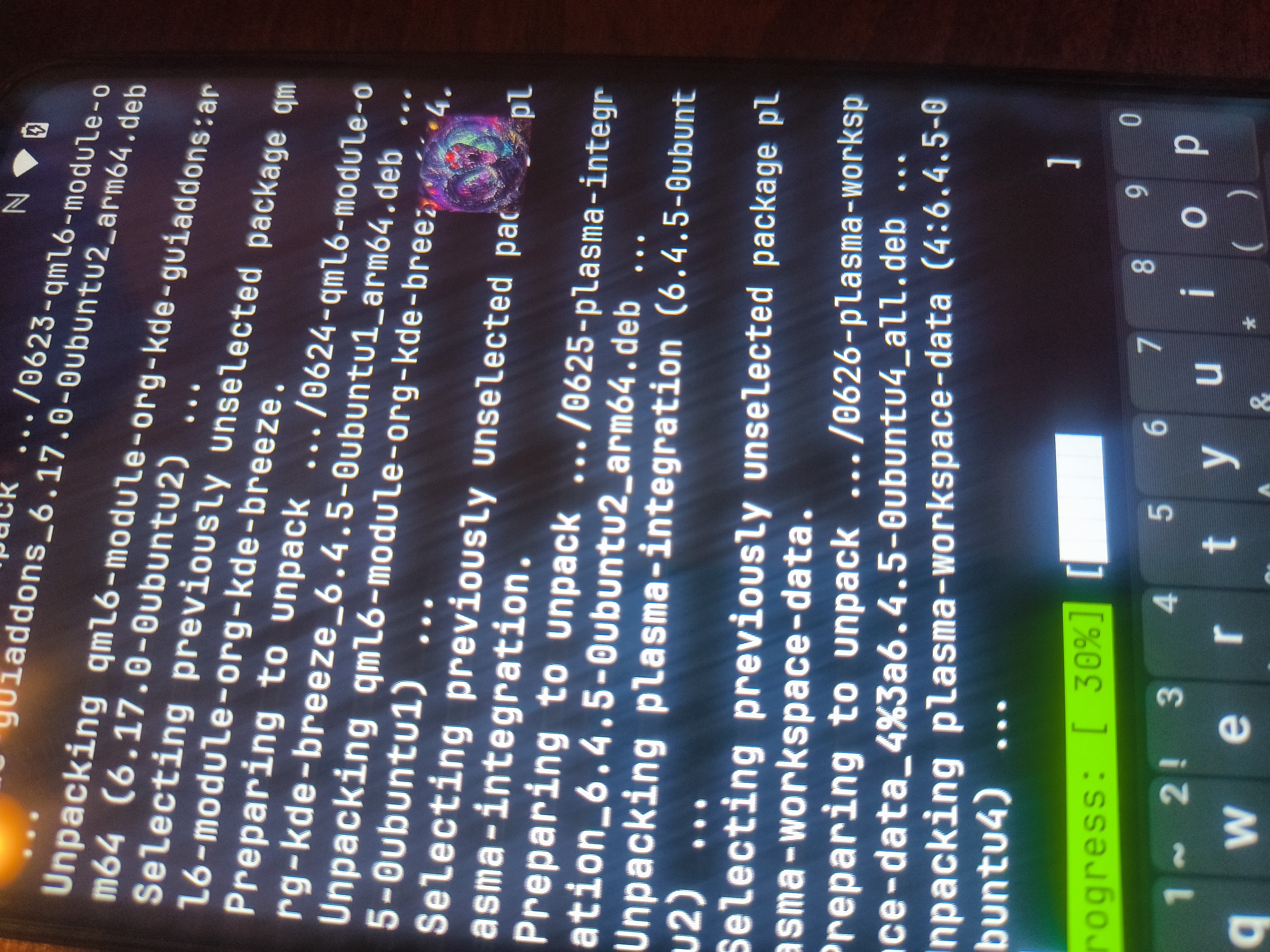
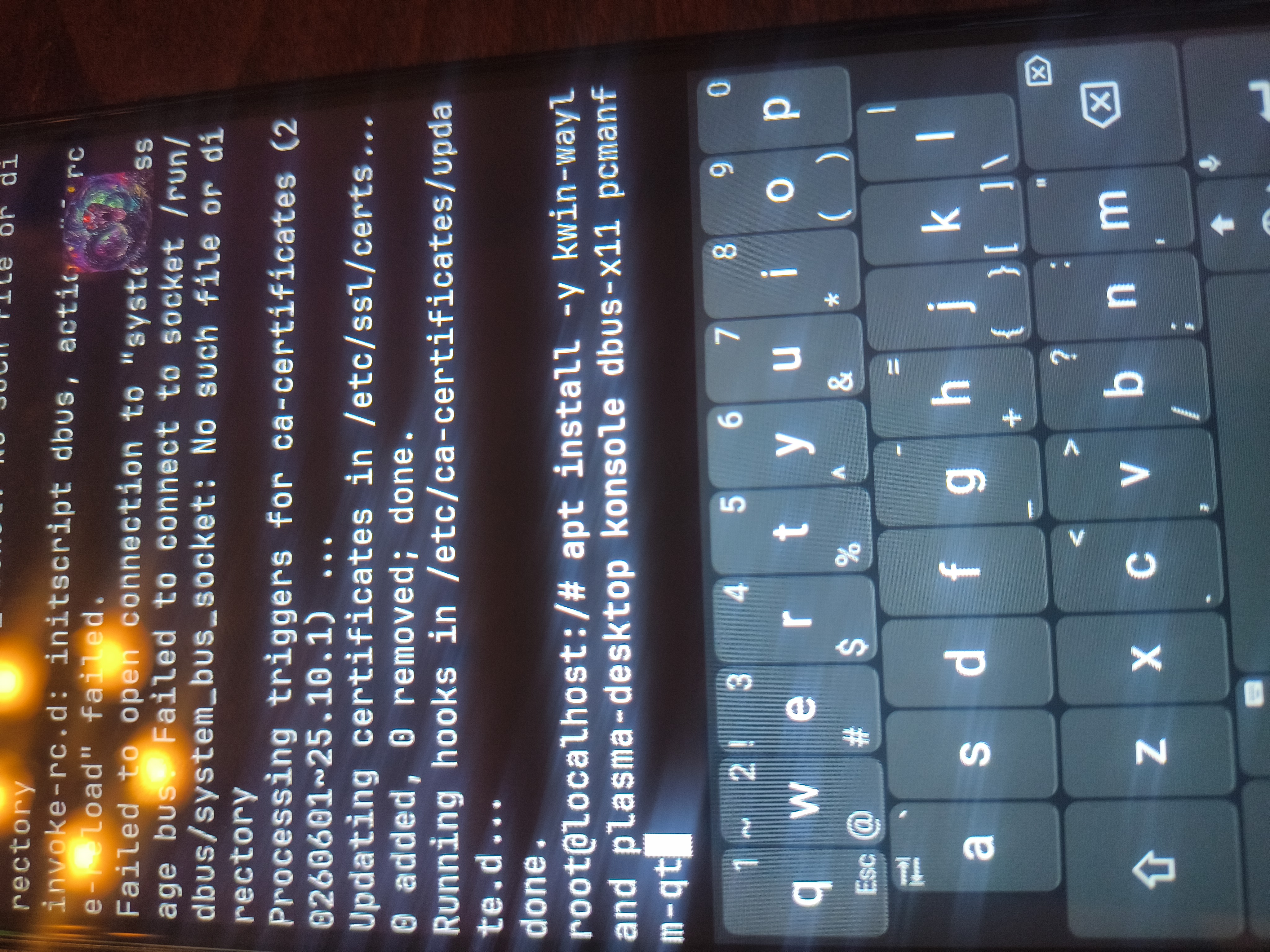
Install KDE Plasma Desktop
This will take several minutes. Wait for the prompt to return.
Two browsers — Falkon for general browsing, Chromium for PWAs from the Apophis App Store. Both require sandbox fixes to run inside proot.
— Falkon
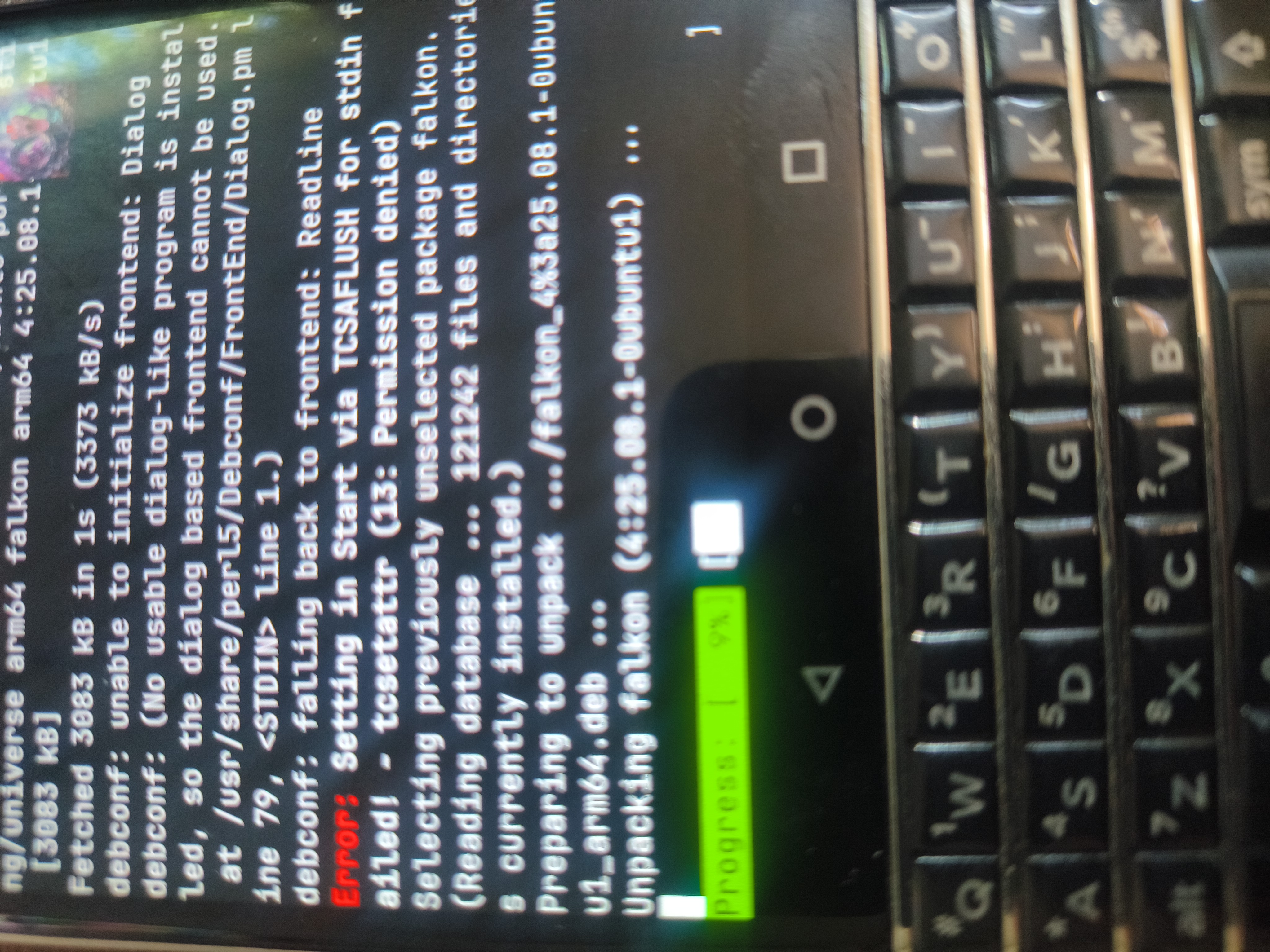
Native KDE browser using QtWebEngine. Lightweight, touch-friendly, no snap.
Install Falkon
apt install -y falkonCOPY
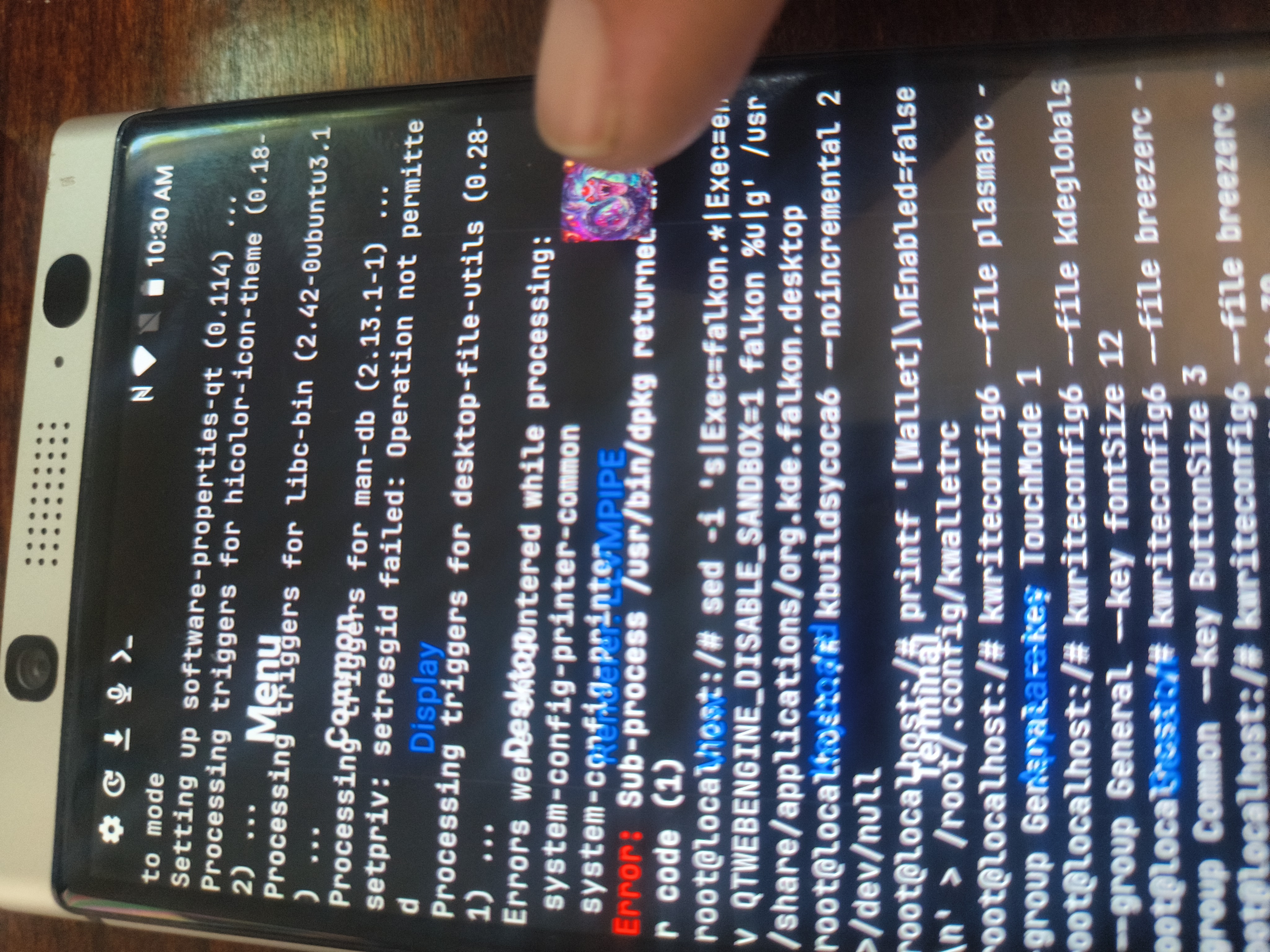
Fix Falkon sandbox — patch desktop file
sed -i 's|Exec=falkon.*|Exec=env QTWEBENGINE_DISABLE_SANDBOX=1 falkon %u|g' /usr/share/applications/org.kde.falkon.desktopCOPY
Rebuild app cache
kbuildsycoca6 --noincremental 2>/dev/nullCOPY
— Chromium
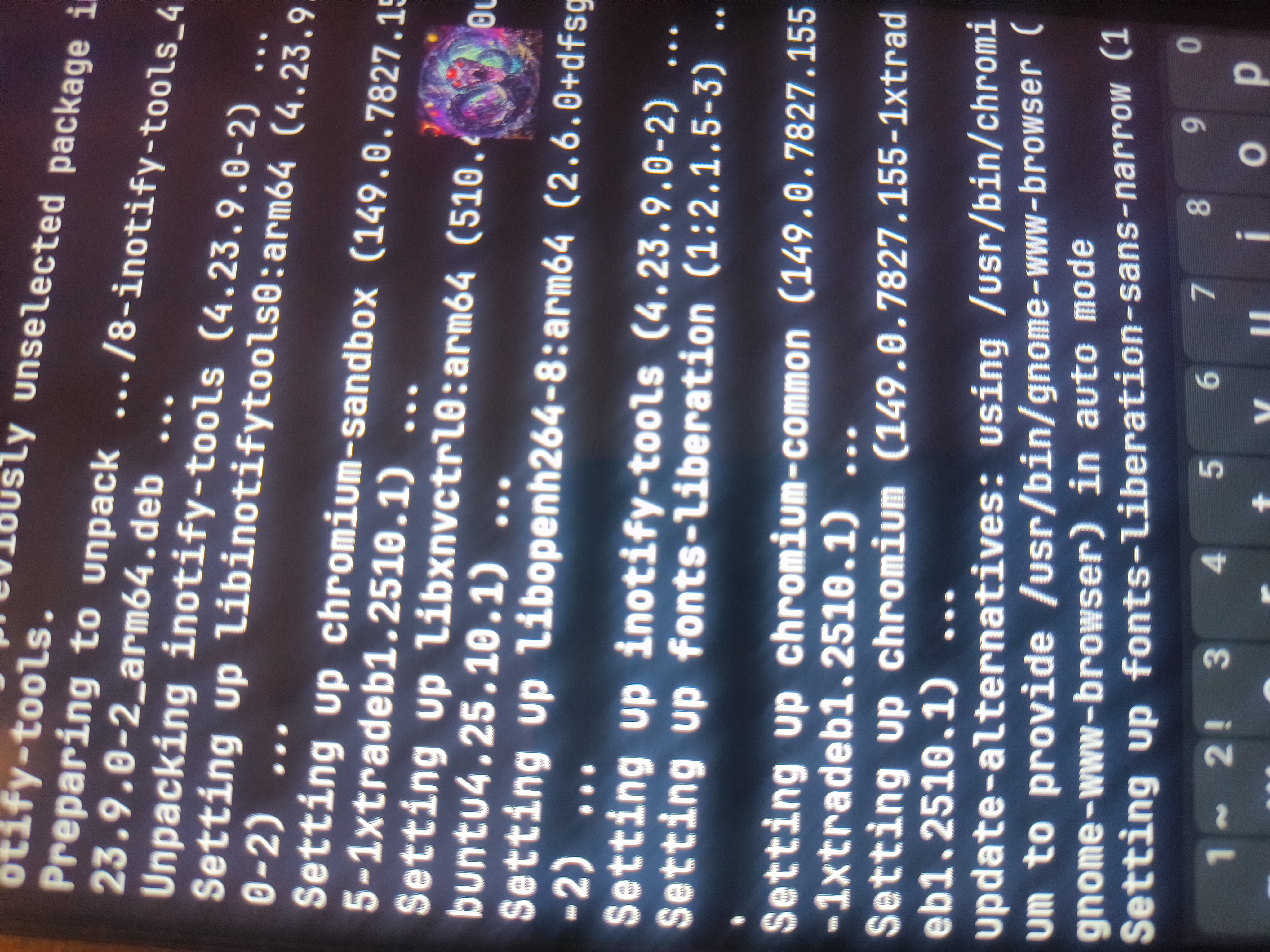
Required for PWA installs from the Apophis App Store. Installed as a native deb via the xtradeb PPA — no snap. The launcher script itself is wrapped once, so every PWA inherits --no-sandbox automatically — no per-app patching needed.
Step 1 — add xtradeb PPA
add-apt-repository ppa:xtradeb/apps -yCOPY
Step 2 — update package cache
apt updateCOPY
Step 3 — install Chromium (native deb, no snap)
apt install -y chromiumCOPY
Note: The package name is chromium — not chromium-browser. Using chromium-browser on Ubuntu pulls in the snap dummy package instead.
Why this fix works:/usr/bin/chromium isn't the real binary — it's a launcher script that ends in exec $LIBDIR/$APPNAME $CHROMIUM_FLAGS "$@". Wrapping this one script means every caller (the main icon, every PWA's .desktop file) inherits --no-sandbox automatically through "$@". No need to touch any .desktop file individually.
Do not skip Step 6.printf ... > file does not set the execute bit — the file lands as non-executable by default. Skipping chmod produces exit code 126 ("permission denied") and silently breaks both the desktop icon and every PWA, even though the wrapper's contents are correct.
Verify
ls -l /usr/bin/chromium /usr/bin/chromium-real && chromium --versionCOPY
Note:--version confirms the wrapper chain runs, but exits before any display code — it doesn't prove the GUI launches. Test for real by tapping the desktop icon from inside the Plasma session, then open a PWA.
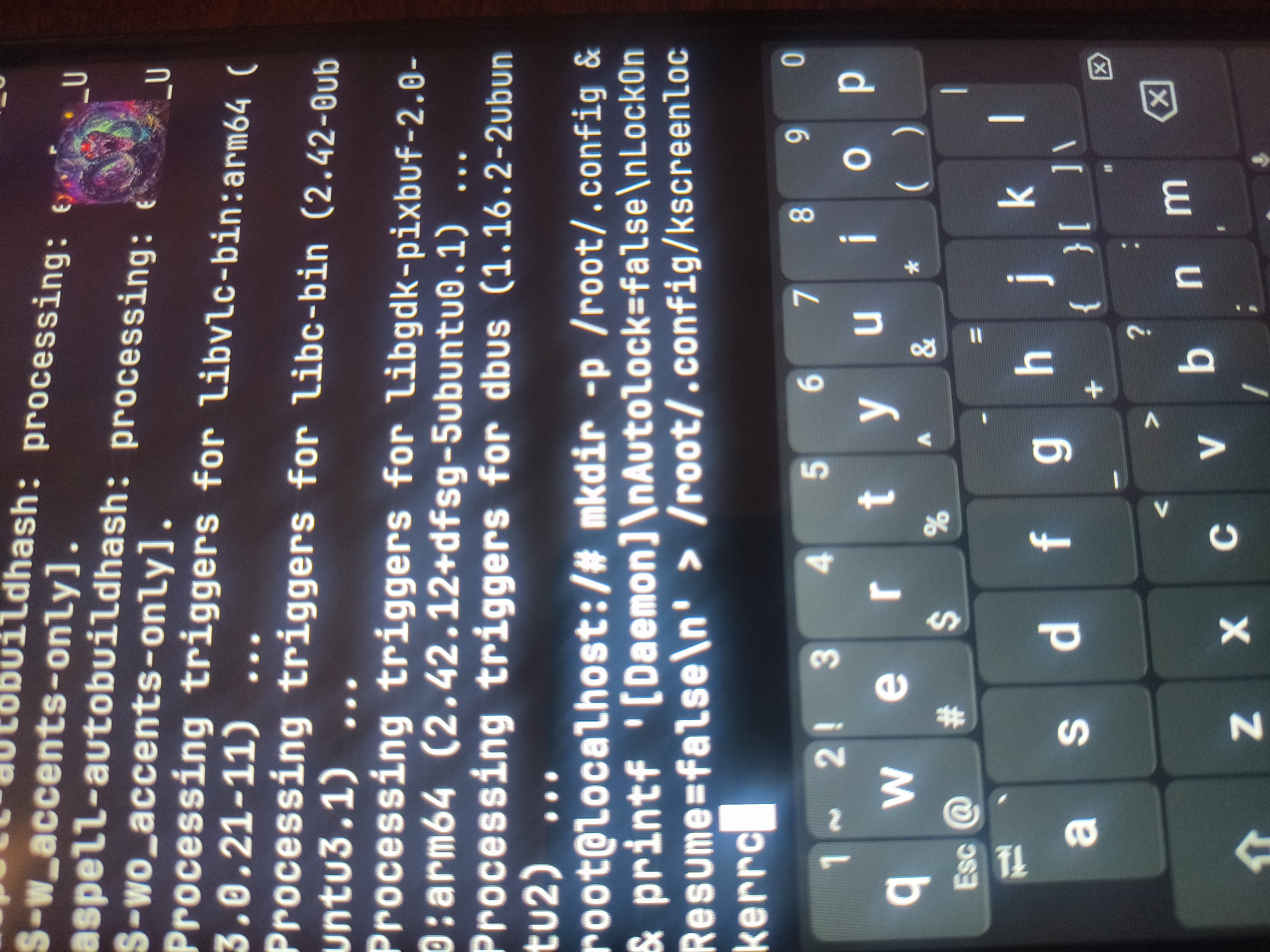
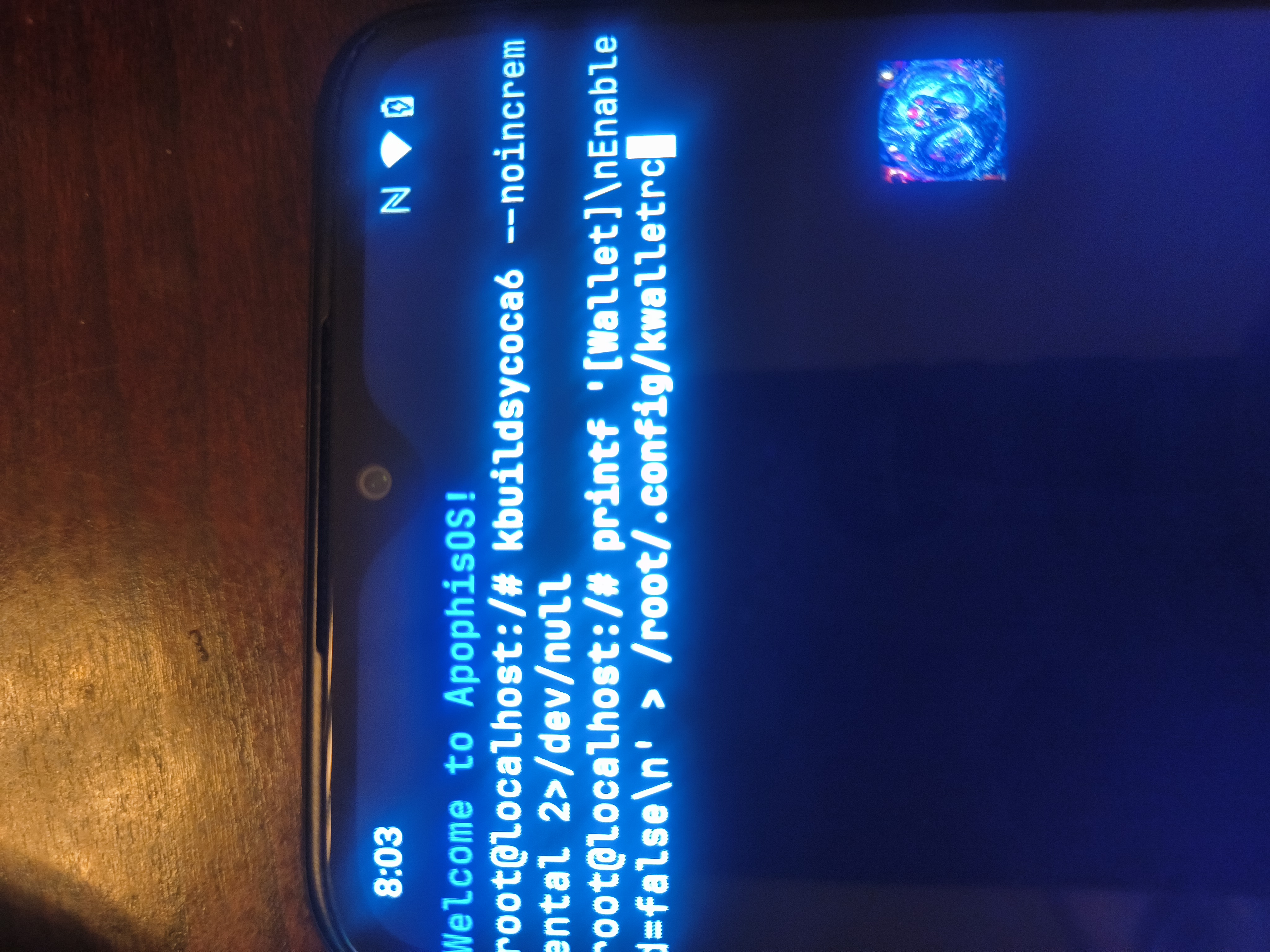
// Phase 7 — Disable Screen Locker & KDE Wallet
Disable Screen Locker & KDE Wallet
Write both configs and rebuild the app cache in one command
Should show QTWEBENGINE_DISABLE_SANDBOX=1. If not, repeat Phase 6.
Apophis App Store
133 PWAs · Real Icons · Linux Desktop Ready
Apps unavailable on standard Linux — Microsoft Office, Adobe Photoshop, Canva, AI tools, and 130 more — all installable directly to your Linux desktop as Progressive Web Apps via Firefox + PWAsForFirefox.
Loading apps...
🐍 No apps matched your search — try a different term
// How to Install Any PWA
Install Any App to Your Desktop
1️⃣
Click any app card — it opens in Firefox on your ApophisOS desktop
2️⃣
Sign in if required (Office, Adobe, etc.)
3️⃣
Click the PWAsForFirefox icon in the toolbar → Install as Web App
4️⃣
The app icon appears in your KDE app drawer — launches like any native app
📦 Install This Store as a PWA
Save the three files to the same folder and serve with a local HTTP server.
Firefox will offer to install Apophis App Store as a standalone app.
# Serve on localhost (run in Konsole)
cd ~/apophis-store
python3 -m http.server 8080COPY
Open http://localhost:8080 in Firefox and install from the toolbar.
The ApophisOS Platform
Three tiers. One mission. Your device, your rules.
ApophisOS is not a single product — it is a platform built across three tiers, each targeting a different device and use case. All three share the same core philosophy: Linux sovereignty, privacy by default, and zero compromise on what your hardware can do.
Tier 01
// For PCs & Laptops
ApophisOS Desktop
DEBIAN TRIXIE · PLASMA LITE · FULL PENTEST SUITE
The full ApophisOS experience on any x86 or ARM laptop or desktop. Built on Debian Trixie with a tuned Plasma Lite desktop — larger controls, touch-optimized UI, finger-friendly from the ground up. Ships with a complete professional-grade penetration testing toolkit and Tor with 14-Eyes exit node exclusion baked in from the start.
This is the workstation tier. If you need a fully sovereign, privacy-first Linux machine that also doubles as a mobile pentest platform, this is it.
🐧
Debian Trixie Base
Stable, modern, and fully maintained. apt package management. No bloat. Built to last.
🖥️
Plasma Lite Desktop
KDE Plasma tuned for touch — larger targets, bigger icons, finger-navigable without a mouse.
🔒
Full Pentest Suite
23+ verified tools across recon, exploitation, wireless, MITM, forensics, and web testing.
🧅
Tor + 14 Eyes Exclusion
Tor configured at install with all 14 Eyes nations excluded from your circuit. Always on.
🛡️
Privacy by Default
No telemetry. No cloud accounts. No mandatory sign-ins. Your machine, your data.
💻
Any x86 / ARM Hardware
Runs on repurposed Chromebooks, old laptops, mini PCs. Breathes life into old hardware.
Tier 02
// For Android Phones & Tablets
ApophisOS Mobile
NATIVE TERMUX · PLASMA LITE · NO PROOT · 5G READY
Full Linux on your Android phone — no proot, no container, no compromise. ApophisOS Mobile runs a native ApophisX environment with a Plasma Lite desktop over ApophisX X11. Your phone keeps doing everything it does — calls, SMS, 5G, camera — while a complete Linux desktop runs alongside it.
This is what the Free Tier guide builds. The paid APK gets you there in one tap. Either way, it is the same environment — real Linux, real desktop, real tools, on the device in your pocket.
📱
Native — No Proot
Runs directly on the Android Linux kernel. No container overhead. No virtualization layer.
🖥️
Plasma Lite Desktop
Full XFCE4 tuned to look and feel like Plasma — touch-optimized, finger-navigable, beautiful.
📡
Full Hardware — No Sacrifice
5G, calls, SMS, camera, Bluetooth — all intact. Linux runs alongside Android, not instead of it.
🔒
Pentest Suite
23+ verified security tools native to Termux. Recon, MITM, wireless, web testing — in your pocket.
🧅
Tor + 14 Eyes
Full Tor stack with 14 Eyes exit node exclusion. Firefox routed through Tor for darkweb browsing.
⚡
Auto-Boot
Desktop starts automatically when your phone boots. Unlock — you are already in Linux.
Tier 03
// For Lower-End Phones & Tablets
ApophisOS Platform
APOPHIS LAUNCHER · APOPHIS TERMINAL · NO GUI REQUIRED
Not every phone can handle a full desktop environment — and that should not be a barrier to Linux sovereignty. ApophisOS Platform brings the core Apophis experience to lower-end Android devices through a custom launcher and a custom terminal, without the overhead of a full GUI.
The Apophis Launcher replaces your Android home screen with a privacy-focused, minimal interface. The Apophis Terminal gives you direct access to a full Linux command line. Together they deliver a genuinely different kind of phone — one that is yours.
🚀
Apophis Launcher
Custom Android launcher with grayscale toggle, app timers, mindful pause, and focus schedules. No Google dependencies.
⌨️
Apophis Terminal
Full Linux command line access via a custom-built terminal. Real tools, real shell, real Linux — no desktop required.
📱
Low-End Device Support
Designed for phones that cannot run a full GUI. If it runs Android 8.1+ and has 2GB RAM, it runs Platform.
🔒
Privacy by Default
No telemetry. No tracking. No big tech dependencies. ADB-managed, rootless where possible.
⏱️
Digital Wellbeing Tools
Built-in app timers, focus blocks, and screen time management. Your phone works for you, not the other way around.
🛠️
No Root Required
Fully ADB-managed install. No bootloader unlock needed. Works on locked-down carrier devices.
// Get a Device with ApophisOS Pre-Installed
Buy a Ready-to-Go Device
Don't want to build it yourself? Browse the GigLife Gaming store on eBay — phones, tablets, and laptops with ApophisOS pre-installed and ready to go out of the box.
The mobile Linux space is full of fascinating projects taking very different paths to the same destination. Here is an honest look at how ApophisOS fits into that conversation — and why we think the question itself is more interesting than the answer.
// 01 — Starting Point
What do we all agree on?
Before anything else — a hat tip. Projects like postmarketOS, Ubuntu Touch, and Sailfish OS are doing genuinely impressive work. Mainlining drivers, building telephony stacks from scratch, and pushing manufacturers toward openness takes real dedication. The mobile Linux community as a whole is moving in a great direction.
ApophisOS comes at the same problem from a different angle — not better or worse, just different. And that difference raises an interesting question worth exploring together: what actually makes something a mobile Linux platform?
Here is where everyone agrees, regardless of project: every major mobile Linux effort — including ApophisOS — runs on the Linux kernel. On most devices, that means the Android Linux kernel. That part of the debate was settled a long time ago.
// 02 — Linus' Guiding Principle
One rule that everyone respects.
"The biggest thing any program can do is not the technical details — it's how useful the program is to users. Any time any program breaks the user experience, that's the absolute worst failure a software project can make."— Linus Torvalds
Linus has enforced this rule — don't break userspace — more consistently than almost any other principle in open source. It is not about ideology. It is about the user sitting in front of the machine, trying to get something done.
ApophisOS takes this seriously as a design goal. The Apophis Terminal and Plasma Lite environment sit on top of a fully functional Android userspace — calls, texts, 5G, audio, Bluetooth — all of it intact. Nothing is broken in service of architectural purity. The phone still works like a phone, and the Linux environment runs alongside it without conflict.
That is a philosophical choice, not a criticism of projects that make different tradeoffs. Every approach has genuine merit.
// 03 — The Hardware Reality
How everyone handles the blob problem.
Here is something worth understanding about how mobile Linux projects actually work under the hood — because the approach is more similar across projects than it might appear from the outside.
// Ubuntu Touch & Sailfish — via Halium / libhybris
› Android base flashed to device first
› libhybris bridges Android hardware blobs to glibc Linux userspace
› Android daemons run in a managed container alongside Linux
› Linux environment layered on top with its own init (systemd)

// ApophisOS — direct approach
› Android kernel and HAL are the foundation — used directly
› Apophis Terminal provides native Linux userspace via root packages
› Plasma Lite delivers a full desktop environment over X11
› Hardware blobs accessed natively — no translation layer needed
Both approaches are using Android's vendor hardware blobs to make the device work — that is not a knock on anyone, it is just the reality of the hardware ecosystem we are all working in. The difference is mainly in how that bridge is constructed. libhybris is an elegant piece of engineering. ApophisOS skips the bridge and builds natively on what is already there.
Neither is the "right" way. They are both interesting solutions to the same hard problem.
// 04 — A Friendly Comparison
Different paths, same destination.
Feature
ApophisOS
Ubuntu Touch
postmarketOS
Linux kernel
✓ Android Linux
✓ Android Linux
✓ Mainline preferred
Hardware blob access
✓ Direct via root
~ Via libhybris shim
~ Mainline drivers where available
Voice & SMS
✓ Native Android stack
~ Device dependent
~ Variable by port
5G / LTE
✓ Full modem stack
~ Varies by port
~ Limited on most devices
Desktop environment
✓ Plasma Lite
✓ Lomiri / Unity 8
✓ Phosh / Plasma / GNOME
Terminal environment
✓ Apophis Terminal
~ Available
✓ Full Alpine/apk
Security / pentest tools
✓ 23-tool native suite
~ Not a focus
~ Available via apk
Daily driver hardware
✓ Full — no compromises
~ Most things work
~ Varies significantly
The table tells a nuanced story. Ubuntu Touch and postmarketOS have broader device coverage and a more traditional Linux init stack — genuine strengths. ApophisOS has zero hardware compromises and a native security toolset. These are different priorities, not a ranking.
// 05 — The Four Questions
ApophisOS against four simple criteria.
Here is one way to frame the "is it mobile Linux" question. Four criteria — drawn from how Linus himself talks about what Linux is and what it should do.
✓
Does it run natively on the Linux kernel?
Yes. The Android kernel is the Linux kernel. ApophisOS runs directly on it with full system call access and root-level process management — no virtualization, no emulation layer.
✓
Does it provide access to all hardware services?
Yes. Radio, modem, audio, Bluetooth, camera, sensors, GPU — everything works, accessed through the vendor HAL directly. No hardware capabilities are sacrificed.
✓
Does it respect and preserve userspace?
Yes. The Apophis Terminal and Plasma Lite layer coexist with the Android userspace rather than replacing it. Nothing existing breaks. Linus' golden rule: honored.
✓
Does it make the user more capable without compromise?
That is the goal. A full desktop environment, a native security toolkit, sustained compute workloads, and verified multi-day uptime — on a device that still makes calls and sends texts without missing a beat.
// 06 — The Honest Take
Where ApophisOS stands differently.
🔩
The hardware manufacturer situation affects everyone equally
Proprietary hardware drivers are a challenge for every mobile Linux project. postmarketOS pursues mainlining. Ubuntu Touch uses libhybris. ApophisOS accepts the current hardware reality and builds fully on top of it. All three are valid responses to the same upstream problem.
🧩
The "blob" question applies broadly across the space
Every project using Halium or libhybris is, by definition, depending on Android hardware blobs. That is not a criticism — it is what makes mobile Linux work on real hardware today. ApophisOS does the same thing, just without the translation layer in between.
⚖️
Coexisting with Android vs. replacing it is a real distinction
Ubuntu Touch and postmarketOS replace the Android userspace — a meaningful architectural statement. ApophisOS coexists with Android's userspace. Whether that is "still Linux" or "Linux on Android" is a genuinely interesting question and reasonable people land in different places.
🖥️
The user experience is the part that is hard to argue with
Whatever label you put on it, the experience is real: a full desktop environment via Plasma Lite, a native terminal, a 23-tool security suite, and a device that functions perfectly as a daily driver. The philosophical debate is interesting. The working device is the point.
// 07 — Your Call
So — is it mobile Linux?
ApophisOS runs on the Linux kernel. It respects userspace. It delivers a full Linux desktop and terminal environment on a fully functional mobile device. It uses Android's hardware layer the same way Ubuntu Touch uses libhybris — just more directly.
Is that a mobile Linux distro? A mobile Linux platform? A Linux environment on mobile? The lines are genuinely blurry — and we think that is fine. The mobile Linux space is young, creative, and still figuring out its own definitions.
We will keep building. You decide what to call it.
Built on Linux. Built for people who use it.
A privacy-first, Linux-native mobile platform. No compromises on hardware. No broken userspace. Just a device that works — and a desktop that means it.
Help & Support
Troubleshooting · Fixes · Contact
Common issues and fixes for both the paid ApophisOS APK and the free Termux tier. If you can't find your answer here, tap the Signal button at the bottom and message directly.
// Paid APK — ApophisOS v0.5.2
Paid APK Issues
APK won't install — "App not installed"
Enable unknown sources first: Settings → Security → Install unknown apps → allow your file manager or browser. Then try installing again.
If it still fails, uninstall any previous version first:
adb uninstall com.termuxCOPY
App crashes immediately on launch
Go to Settings → Apps → ApophisOS → Battery → Unrestricted. The OS is killing the app before it can start. After setting to Unrestricted, force stop and relaunch.
Rootfs download stuck or failed
Make sure you are on WiFi — mobile data is often too slow. Force stop the app, reopen it, and the download will resume. If it still fails:
adb shell pm clear com.termuxCOPY
Then relaunch — it will re-download the rootfs fresh.
Plasma desktop won't start — black screen
Long-press the Display button in the orb menu and make sure your start script is exactly:
Run this inside the terminal to update all packages:
pacman -Syu --noconfirmCOPY
Then try launching again. Outdated packages are the most common cause of Plasma crashes.
pacman "unable to lock database" error
rm -f /var/lib/pacman/db.lck
pacman -SyuCOPY
Plasma desktop doesn't auto-start on boot
Go to Settings → Apps → ApophisOS → Battery → Unrestricted. Also make sure the app has been opened at least once manually first. Boot auto-start only activates after the first manual launch.
Chromium won't launch — sandbox error
sed -i 's|Exec=/usr/bin/chromium|Exec=/usr/bin/chromium --no-sandbox --disable-setuid-sandbox|g' /usr/share/applications/chromium.desktopCOPY
Keyboard types in wrong app or no keyboard appears
Install Hacker's Keyboard from the Play Store and set it as your default keyboard. It sends keystrokes directly to the Wayland compositor without Android's IME layer interfering.
Screen too small / everything tiny
Long-press Display in the orb menu and change the DPI value:
Edit the start script and change -dpi 160 to -dpi 180 or -dpi 200. Higher = larger.
// Free Tier — Termux + proot-distro
Free Tier Issues
Termux won't install — "App not installed"
Enable unknown sources: Settings → Security → Install unknown apps → allow your file manager. All three APKs (Terminal, X11, Boot) must come from the same download source.
termux-x11-nightly install fails — "Unable to locate package"
You must install x11-repo first before installing nightly. Run these in order:
Run this inside your distro — replace chromium with chromium-browser if on Ubuntu or Fedora:
sed -i 's|Exec=/usr/bin/chromium|Exec=/usr/bin/chromium --no-sandbox --disable-setuid-sandbox|g' /usr/share/applications/chromium.desktopCOPY
Desktop auto-boot stopped working
Open ApophisX Boot — tap it once to re-register it as a boot service. Then go to Settings → Apps → ApophisX, ApophisX X11, ApophisX Boot → Battery → Unrestricted on all three.
Forgot desktop user password
proot-distro login debian
passwd apophisCOPY
Wrong commands showing in the setup guide
Make sure you tap your distro card in Step 3 before selecting a desktop in Step 4. The commands update based on which distro is selected. Look for the green "Selected distro: [name]" indicator above the desktop cards.
// Still Stuck?
Message the Developer Directly
For problems with devices or app setup, contact the developer on WhatsApp, Signal, or email. Real person, real help — no support ticket.
Full Linux desktop on any Android. Free forever. Native ApophisX build — no proot container. Follow Phases 01-11 in order to get the desktop running, then add whatever optional sections you want.
▼ PRE-INSTALL — 4 APKs Required
All four are ApophisX-branded builds, hosted here. Download and install all four before starting Phase 01.
WARNING: Uninstall any existing stock Termux, Termux:X11, Termux:Boot, or Termux:Widget apps first — mixing stock and ApophisX-branded versions will cause conflicts. Open ApophisX Boot at least once after install.
PHASE 01First Boot Setup〉
Run termux-setup-storage FIRST. Tap Allow when prompted. Without this, storage paths fail silently.
DO NOT install xfce4-goodies. It pulls parole → gst-libav → ffmpeg which has a broken build in current x11-repo and will break the install.
If you hit ffmpeg/parole dpkg error run this first: dpkg --remove --force-remove-reinstreq ffmpeg gst-libav parole xfce4-goodies 2>/dev/null; apt-get clean && apt-get update
Uses startxfce4 which handles the full XFCE4 session including WM, panel, desktop and touch input. PulseAudio TCP module enables YouTube/browser audio. Socket-check waits for X11 readiness — no fixed sleep.
Display scaling: The -dpi 180 flag is a starting point. After launch, pull down the Android notification panel → ApophisX X11 → Output → Scaled → adjust per device. The X11 setting overrides -dpi and persists across reboots. No config changes needed between devices.
› Verify: pulseaudio TCP line present, startxfce4 at the end
PHASE 07Fastfetch — ApophisOS Config〉
mkdir -p ~/.config/fastfetch
Apophis logo file
printf $' A\n A A\n A A\n A A\n AAAAAAAAA\n A A\n A A\n\n ~~~~~~~~~~~~~~~~~\n\n PPPPPPPPP\n P P\n P P\n PPPPPPPPP\n P\n P\n P\n' > ~/.config/fastfetch/ap.txt
› Verify: ApophisOS branding, A/P logo in red, PulseAudio line visible
PHASE 08Browsers — Chromium + Firefox-Tor〉
Chromium = everyday browser, DuckDuckGo homepage, YouTube audio. Firefox = Tor/anonymous only. Both must be launched via wrapper scripts (Phase 09) that set PULSE_SERVER=127.0.0.1 for audio. Tor routing for Firefox requires the optional Privacy section below.
pkg install chromium firefox -y
PHASE 09App Launchers — .desktop Files with Audio〉
All apps that need audio must export PULSE_SERVER=127.0.0.1. These .desktop files appear in Whisker Menu automatically. Chromium opens DuckDuckGo as homepage.
This is the command that actually starts the desktop — Phase 06 only built the script, it didn't run it.
bash ~/start-apophis.sh
ApophisX X11 display scaling — per device: Pull down Android notification → ApophisX X11 → Output → Scaled → adjust visually. Pointer → Direct Touch. The -dpi 180 flag stays unchanged. X11 overrides it and persists.
fastfetch
› Run once inside xfce4-terminal after first launch to confirm ApophisOS branding shows correctly.
Audio test: Open Chromium from the panel → YouTube → play a video. If no audio run: pulseaudio --kill && pulseaudio --start then relaunch the browser.
Note: This guide doesn't configure a custom panel. XFCE's default panel appears on first launch. Whisker Menu is installed (Phase 04) but not added to the panel automatically — right-click the panel → Panel → Add New Items → Whisker Menu to add it.
PHASE 11Scale the Environment to Fit the Screen〉
The first boot is tiny. This is normal — XFCE defaults to 96 DPI regardless of your phone's actual screen density. Two layers control the final size: the ApophisX X11 Preferences display scale, and XFCE's font DPI. Use them together — adjust one, check how it looks, adjust the other — until it's scaled to your liking. Panel size is a separate, optional third adjustment.
Step 1 — ApophisX X11 output scale (do this first)
Long-press the ApophisX X11 icon in your app launcher to open its Preferences screen. Under Display, set Resolution mode to Scaled, then adjust the Display Scale percentage. This is the same setting reachable via the notification shade shortcut (pull down → ApophisX X11 → Output → Scaled), but the Preferences screen gives finer control. Use this together with the DPI setting in Step 2 — adjust both back and forth until the desktop looks right to you. There's no single correct value; it depends on your device's screen size and your own preference.
Step 2 — Fix font size (XFCE Custom DPI)
This is the fix ApophisX X11's own documentation points to for correcting font size specifically.
xfconf-query -c xsettings -p /Xft/DPI -s 192
› 96 = 100% (default, too small on phone screens), 144 = 150%, 192 = 200%. Stick to multiples of 96 — they render sharper. Run the command again with a different value to readjust; it applies instantly, no restart needed.
› Same setting via GUI: Whisker Menu → Settings → Appearance → Fonts tab → check Custom DPI → drag the value.
Step 3 — Panel size
The default XFCE panel from Phase 04 is sized for a mouse, not a finger. Increase it separately from font DPI.
› Default is around 26-30px. 40-48 is a reasonable touch target. Adjust and re-run to taste.
Don't stack this with GTK window scaling. XFCE also has a separate /Gdk/WindowScalingFactor setting (whole-number 2x, 3x GTK scaling). Setting that at the same time as a large Xft/DPI value compounds — icons and windows end up oversized. Use Xft/DPI alone for phone screens; only reach for WindowScalingFactor if fonts are readable but icons/buttons are still too small after trying a higher DPI value.
› If cursor and window borders still look small after DPI is fixed, that's a separate cosmetic setting (cursor theme size, xfwm4 window theme) — not required to use the desktop, safe to leave as default.
▼ OPTIONAL INSTALLS
Everything below is optional — the desktop from Phases 01-11 works fully without any of it. Install only the sections you want.
OPTIONALPrivacy — Tor + proxychains + 14-Eyes Exclusion〉
Tor routes traffic only for apps explicitly sent through it via torsocks or proxychains-ng. The 14-Eyes ExcludeExitNodes config prevents exit through surveillance alliance nations. StrictNodes 1 enforces it.
14-Eyes nations excluded: US, UK, AU, CA, NZ (Five Eyes) + FR, DE, BE, IT, ES, NL, DK, NO, SE.
printf $'#!/data/data/com.termux/files/usr/bin/bash\npkill -x tor && echo "[+] Tor stopped." || echo "[-] Tor was not running."\n' > ~/tor-stop.sh && chmod +x ~/tor-stop.sh
printf $'#!/data/data/com.termux/files/usr/bin/bash\npgrep -x tor && echo "[+] Tor RUNNING" || echo "[-] Tor STOPPED"\n' > ~/tor-status.sh && chmod +x ~/tor-status.sh